
Wan 3.0AI Video Generator

Create AI videos up to 1080p and 30 seconds from text, images, or clips.
 Wan 3.0Multi-Input AI Video Generator
Generate high-quality videos with audio from text descriptions
Example Gallery
See what you can create with text to-video
Wan 3.0 Video Workflow Showcase
Explore AI-generated clips as references for subject action, camera direction, image-led motion, and visual transformation. Select a tile to view the full sequence.
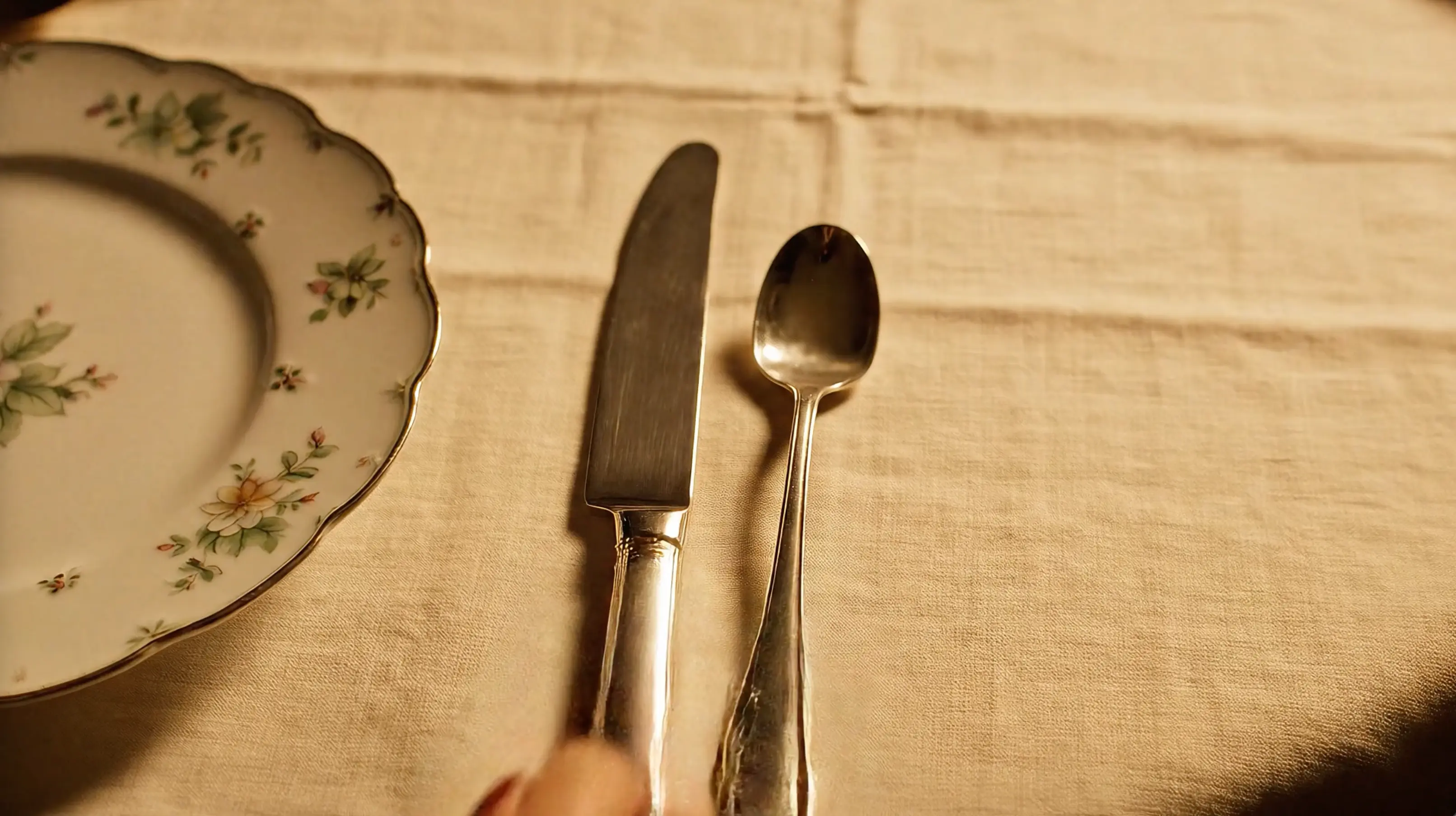
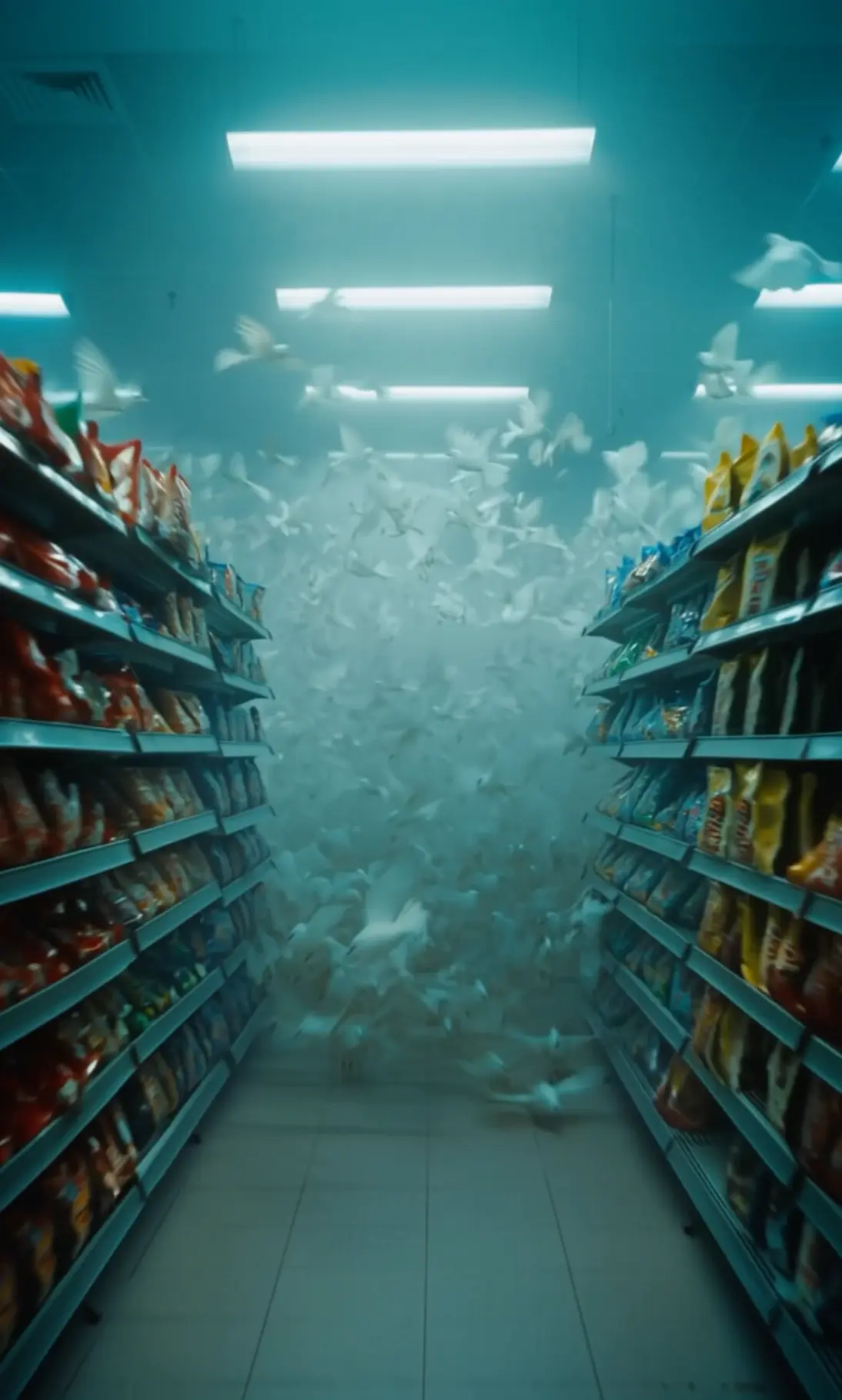
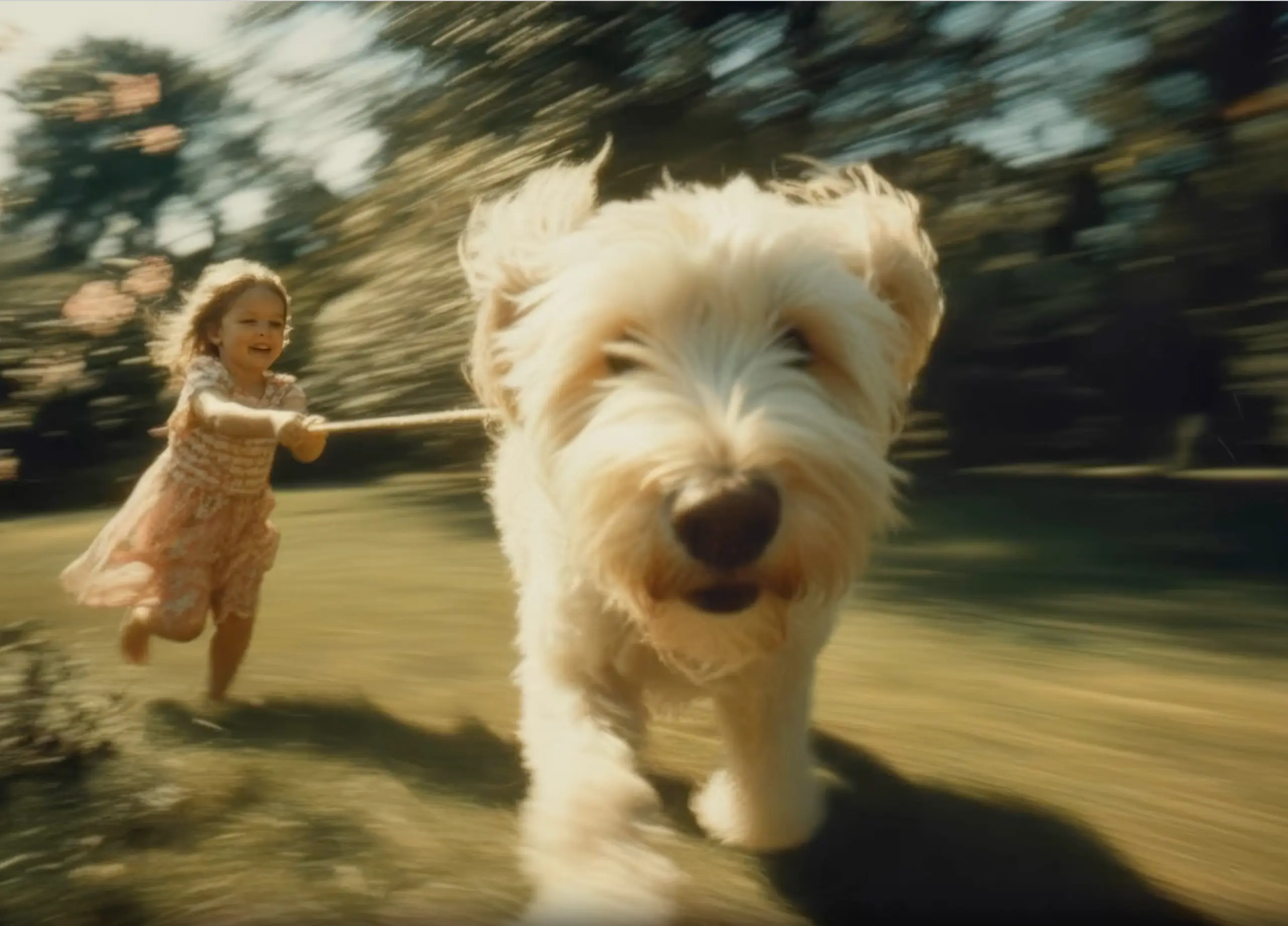
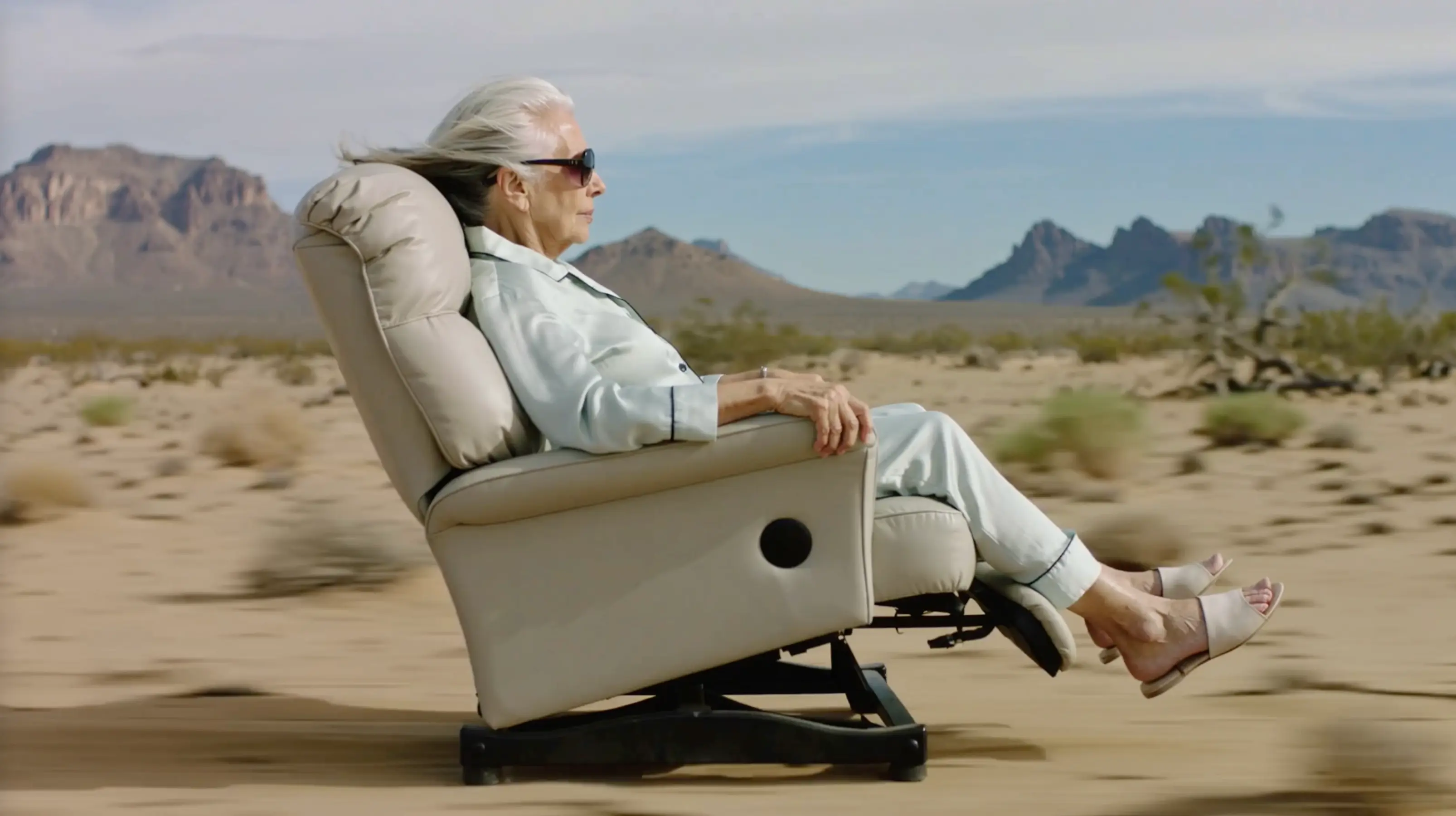
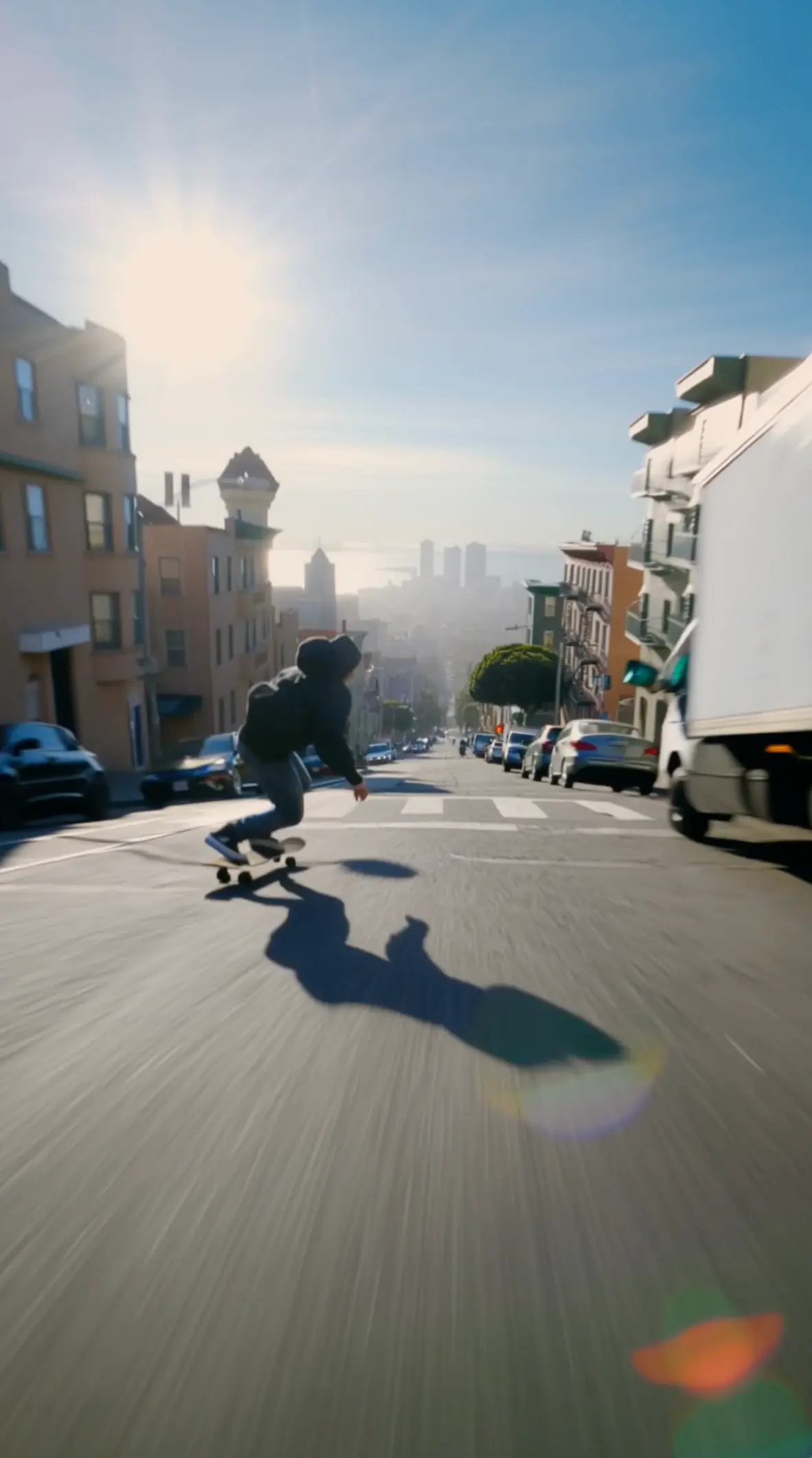
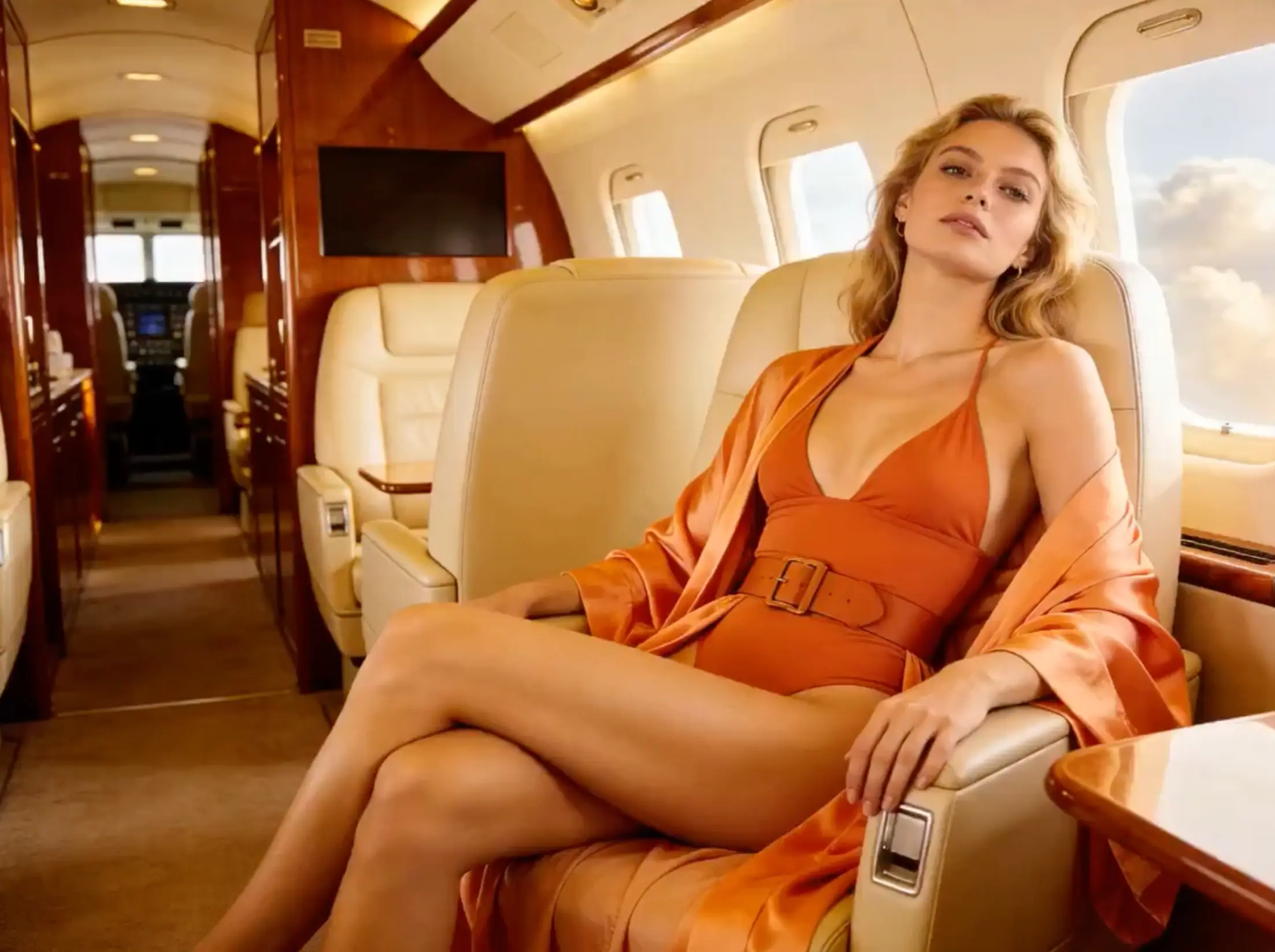
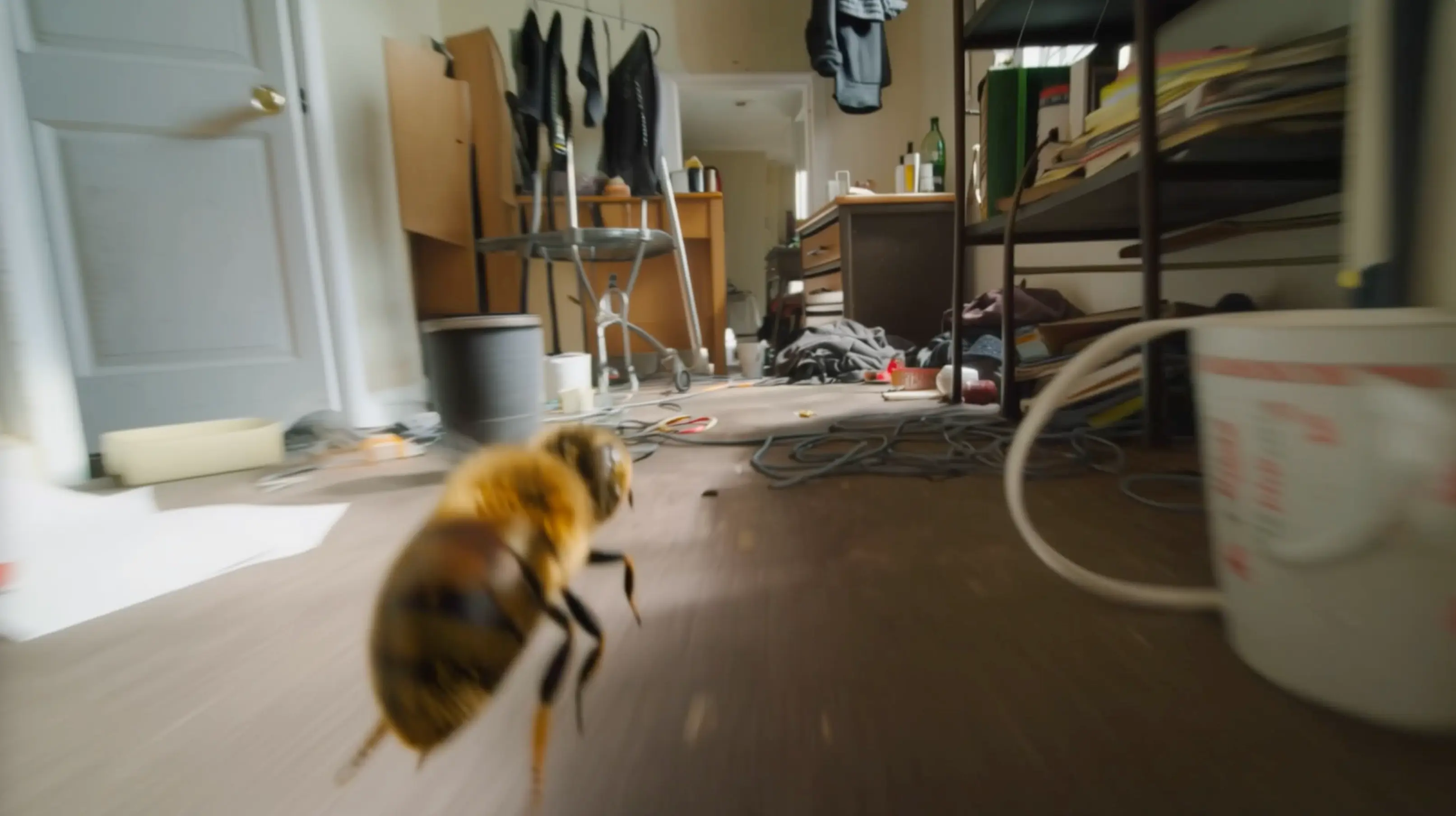
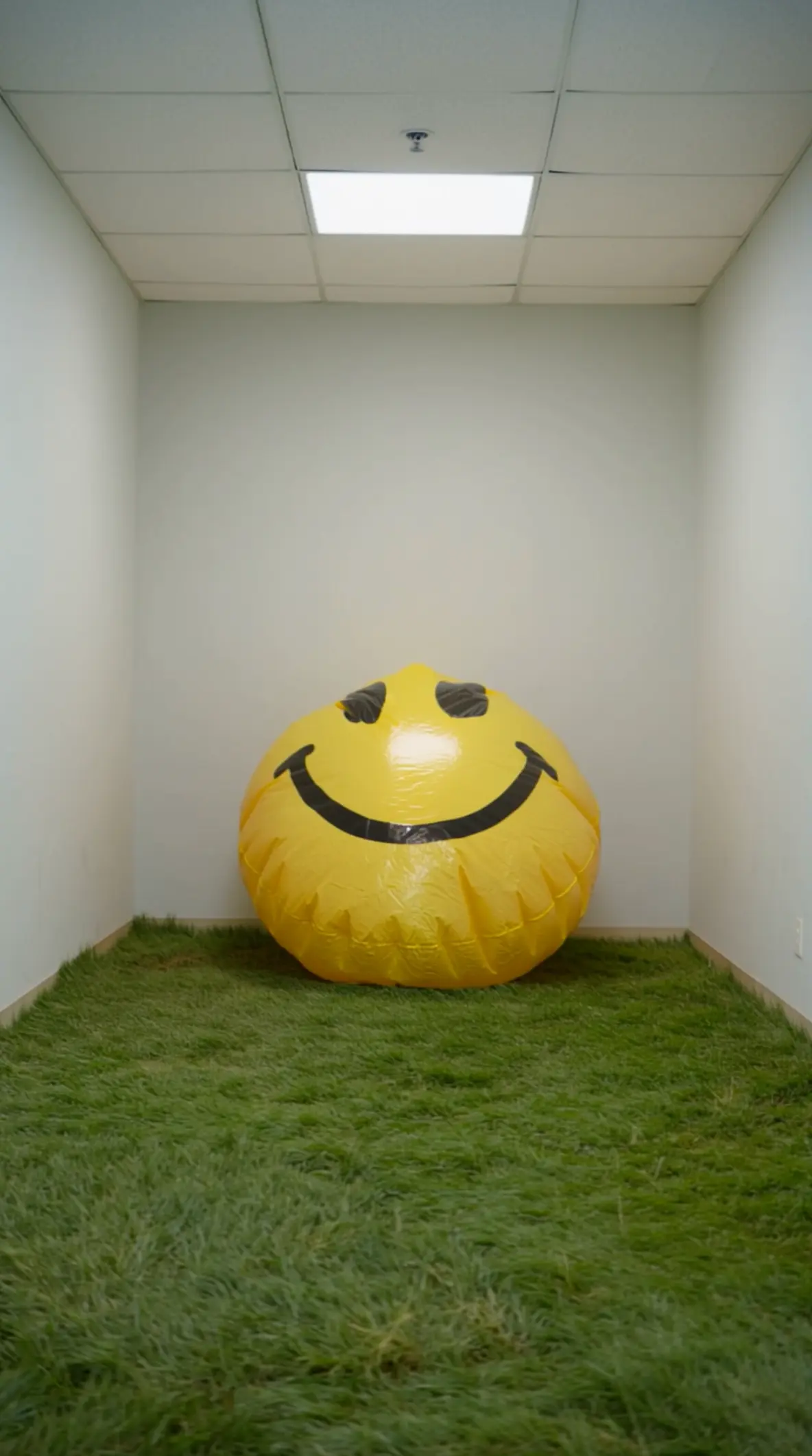
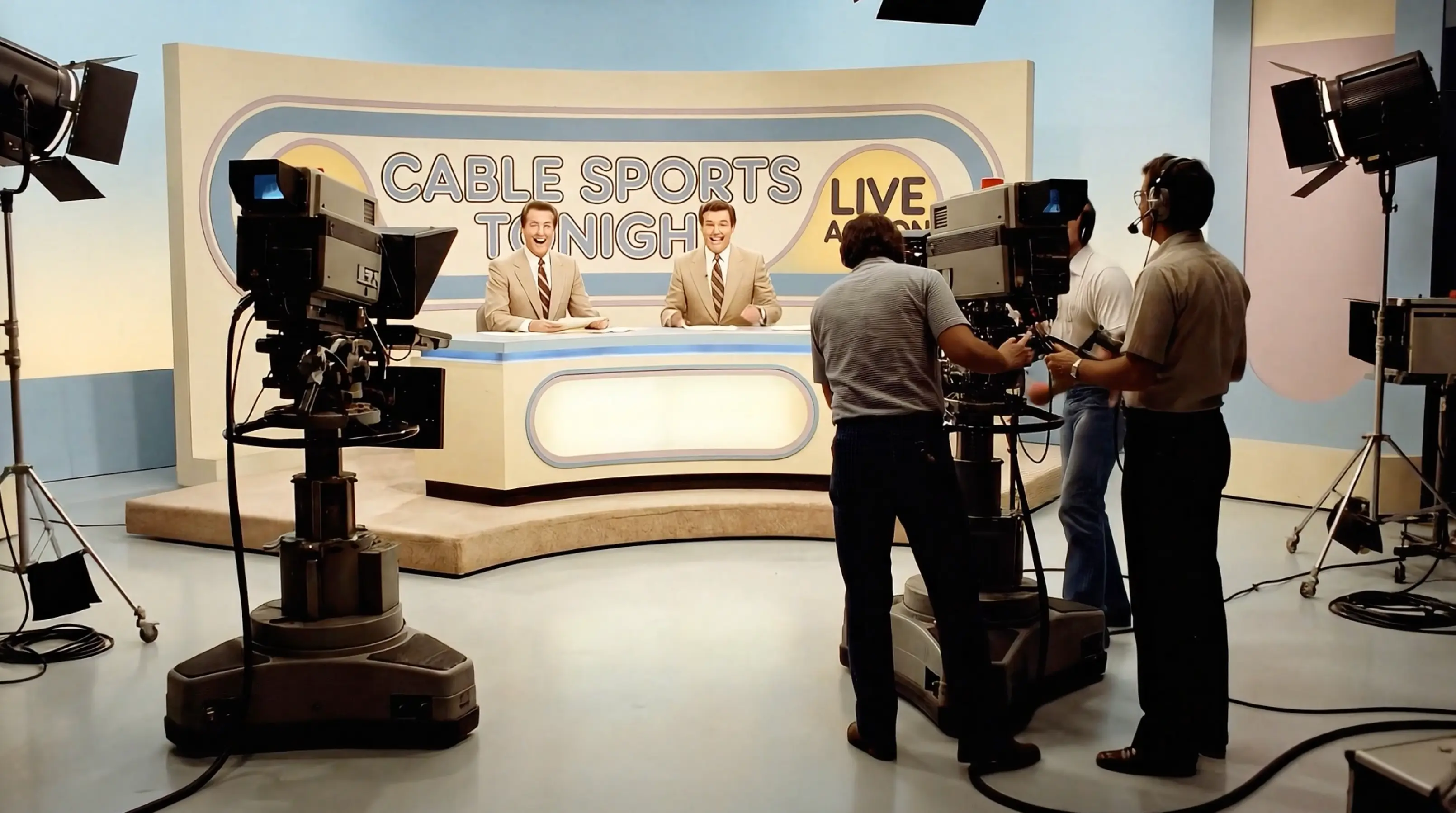
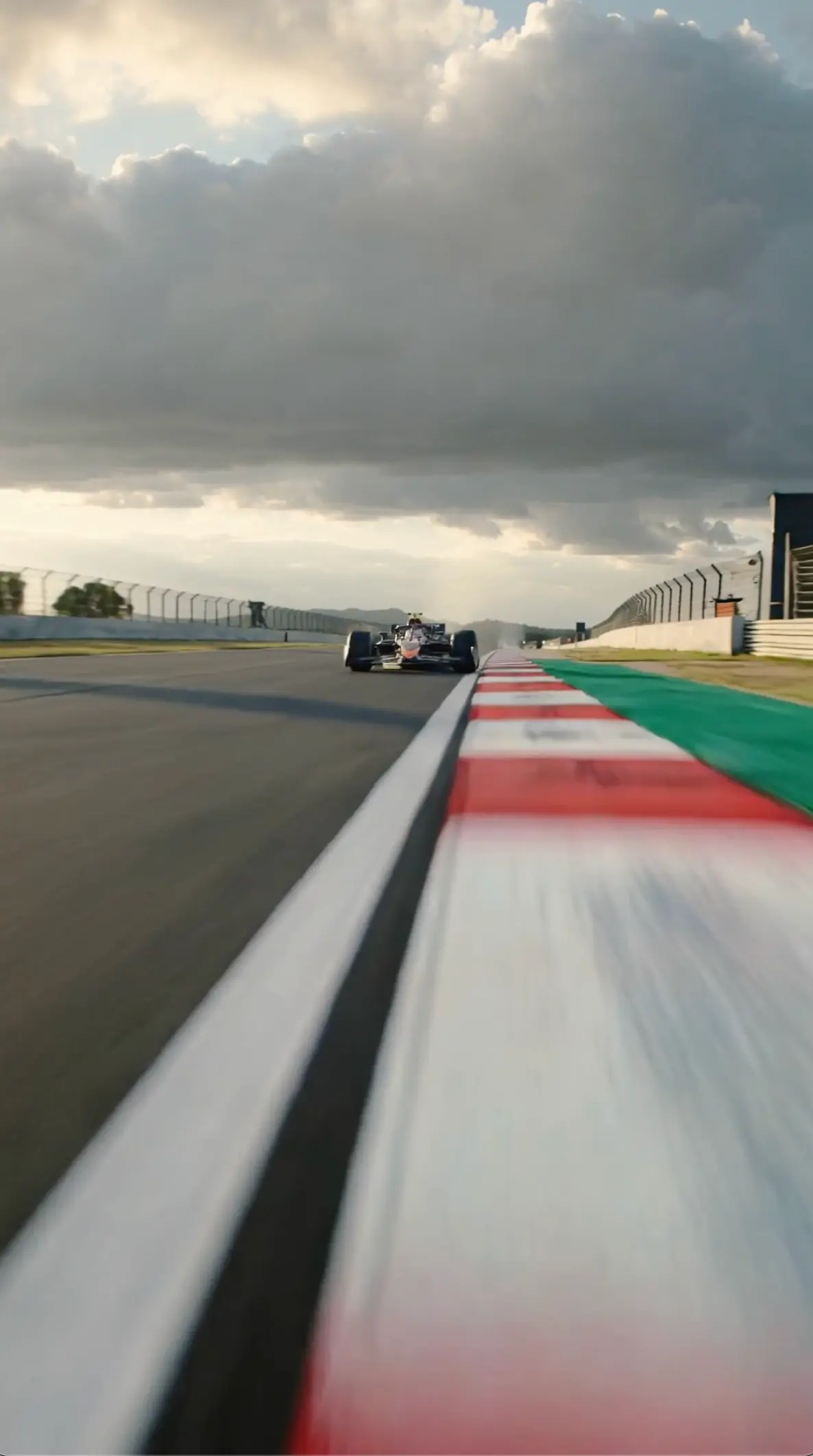
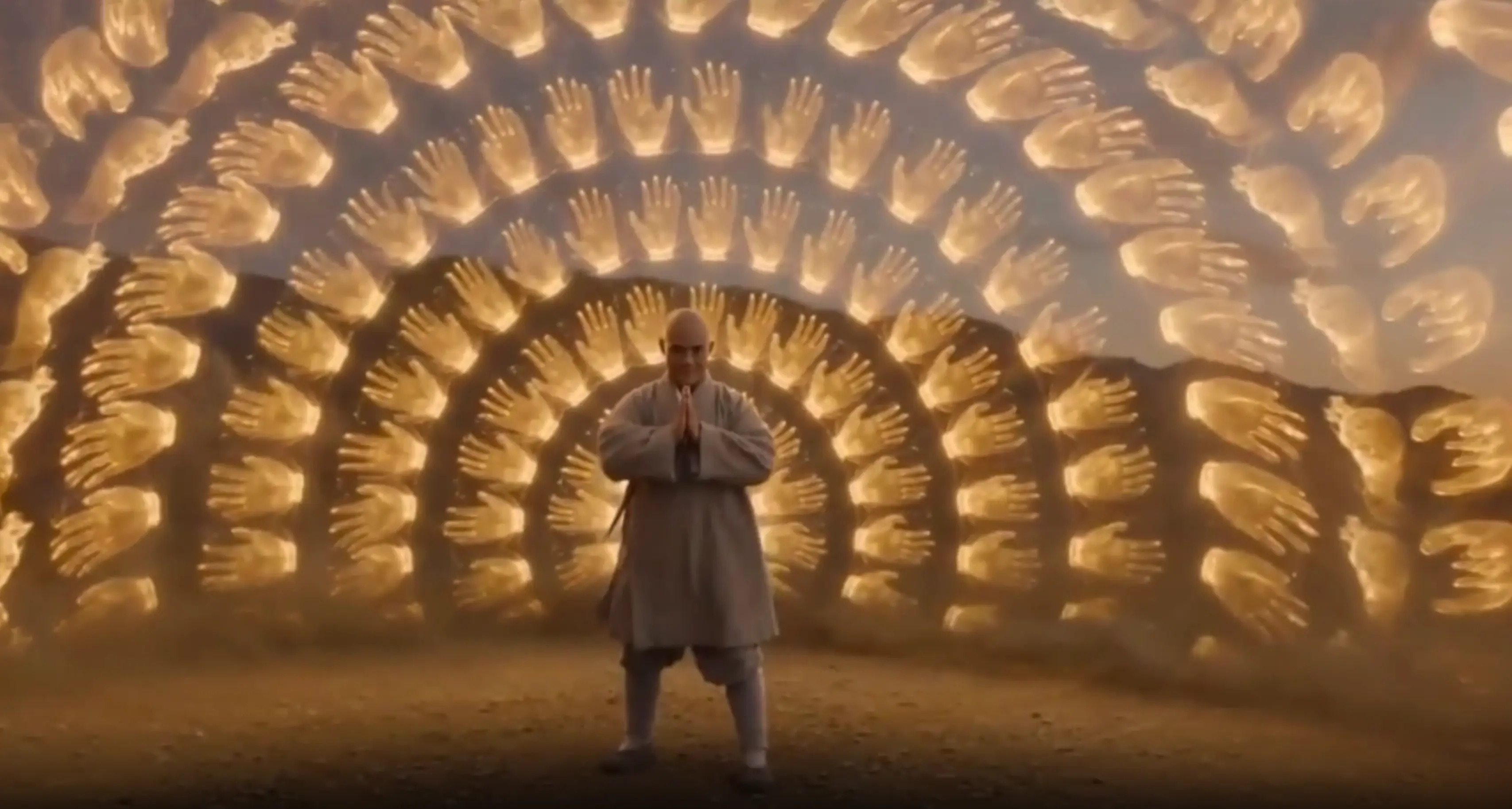
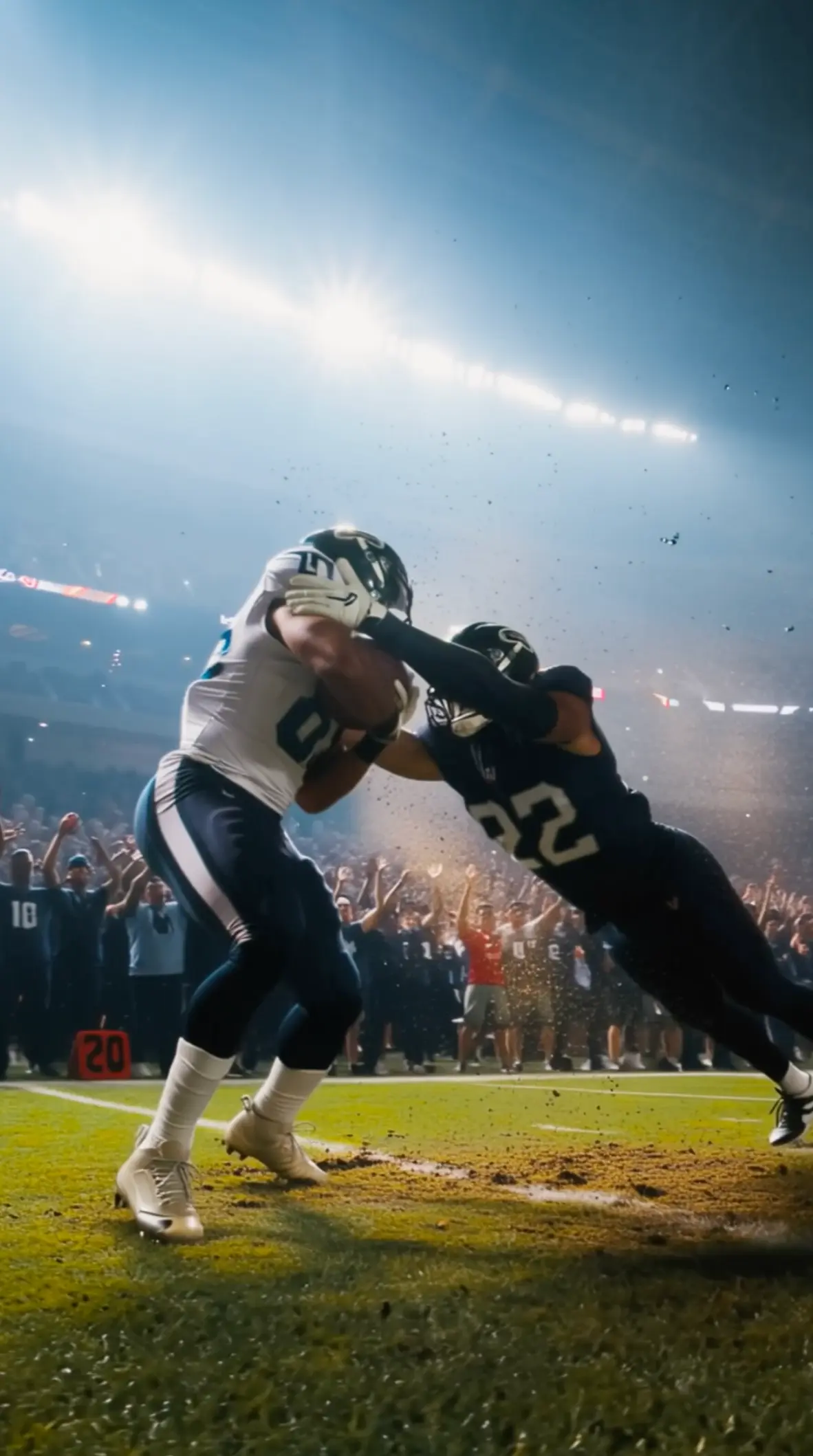
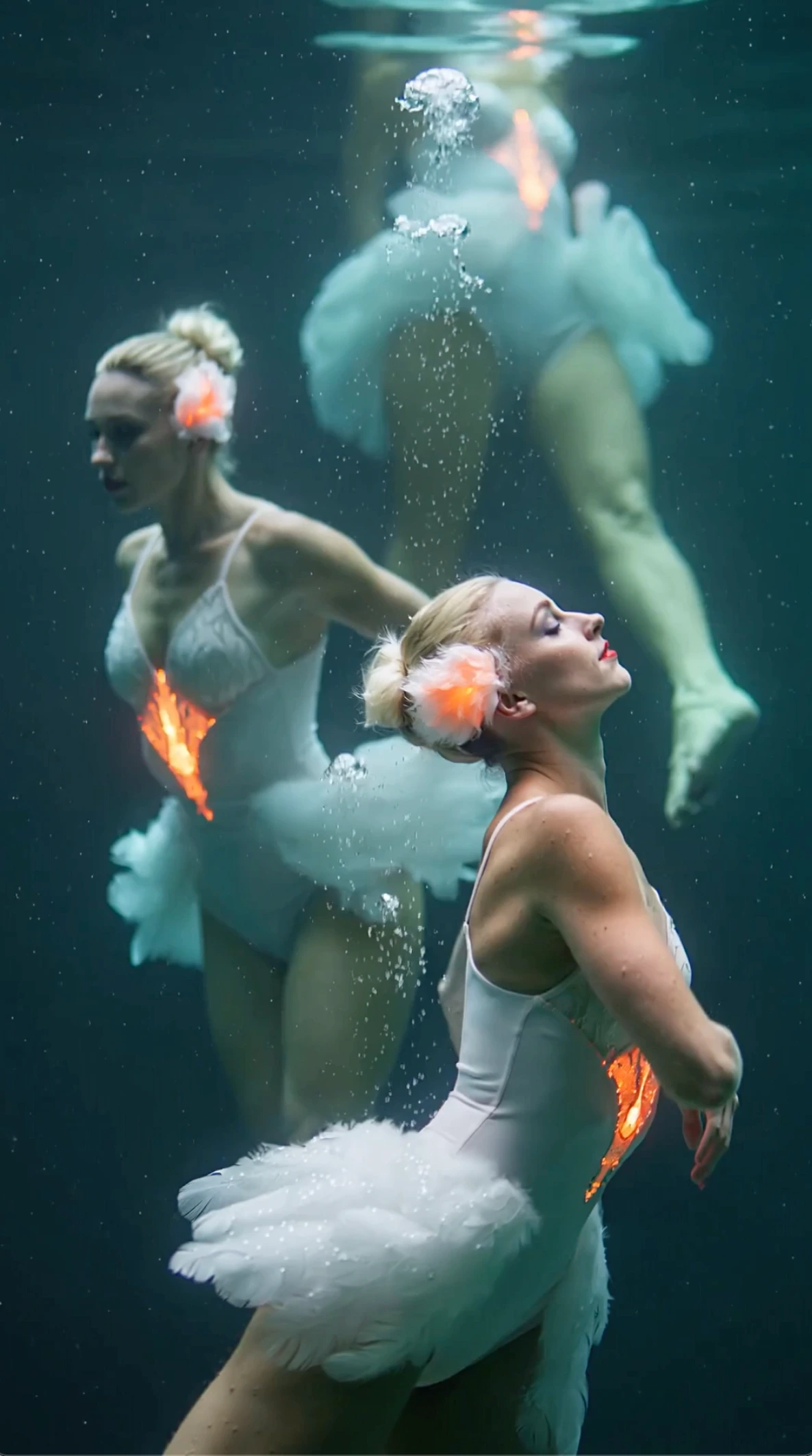
All videos and images shown are AI-generated synthetic content and do not depict real people or real events unless explicitly stated otherwise.
What Is New in Wan 3.0
Longer clips, sharper video, and clearer ways to start
Wan 3.0 makes everyday AI video easier to use.
You can create clips up to 1080p and 30 seconds, and start from the source material you already have—text, a photo, or a video.
That means fewer tiny clips to join later, and a better fit for social ads, product demos, and early scene tests.
Up to 1080p output
Get sharper video for product pages, ads, and client reviews when detail matters.
Clips up to 30 seconds
Fit more of a hook, demo, or short story into one clip instead of joining many short pieces.
Start from text, photo, or video
Write a scene, animate a photo, or restyle a video when the timing already works.
Why Creators Use Wan 3.0
Clear benefits for real projects
Draft concept videos up to 30 seconds before you book a shoot or final edit
Turn product and character photos into motion without rebuilding the look from scratch
Try new styles on footage you already have
Create in the browser so teammates can review drafts faster
How to create your first clip
Four simple steps
Choose how to start
Use text for a new scene, a photo for a fixed look, or a video when motion already exists.
Open the right tool
Go to text to video, image to video, or video to video so the tool matches your input.
Describe the shot
Say who appears, what happens, and how the camera should move—in plain language.
Review and improve
Check the result, change one instruction, and generate again.
Wan 3.0 Features for AI Video Creation
Quality, length, and flexible ways to start
This AI video generator supports 1080p video, clips up to 30 seconds, and three common starts. Each option solves a different need while letting you guide motion and camera in simple language.
1080p video output
Create clear clips for product shots, campaign drafts, and presentation reviews.
Up to 30 seconds per clip
Fit more of an ad hook, product demo, or short story into a single generation.
Text, image, and video starts
Begin from a prompt, animate a photo, or transform a reference video when you need a new look.
Motion and camera control
Describe subject action and camera movement separately so each take has a clearer goal.
Who Wan 3.0 Is For
Built for teams that need short video drafts
Campaign ideas and ad hooks
Turn a brief into a first video concept for social ads, product reveals, and creative reviews.
What to expect from results
Simple habits for a better first try
You can create 1080p video and clips up to 30 seconds. You will get better results when each request has one clear goal. Check the generator and pricing pages for the settings available on your plan.
| Check | Good result | If it misses | Next prompt change |
|---|---|---|---|
| Best starting point | Match the tool to your input | Force every idea through text | Use the right workflow |
| Prompt focus | One subject and one action | Too many events at once | Keep it simple |
| Camera direction | One camera move per take | Too many camera notes | Split the instructions |
| Iteration | Change one detail | Rewrite everything | Keep changes comparable |
Quick prompting tips
Short help after you know the product
Once you pick a workflow, keep the prompt simple. Say who appears, what happens, and how the camera moves. Add style only after the main action is clear.
Lead with the action
Put the subject and main verb in the first sentence.
Separate motion and camera
Say what moves in the scene, then say how the camera should move.
Protect what must stay
For photos and videos, name the details that should stay recognizable.
Retry with purpose
If the result looks off, change only the line that failed.
If the result looks off
Simplify before you add more detail
Most weak results come from mixed goals in one request. Make sure the workflow matches your input, then simplify.
The main action is unclear
Remove extra events and keep one clear verb.
The image changes too much
Say what must stay the same and ask for one motion only.
Camera and subject conflict
Keep subject motion simple while you test one camera move.
Pick a workflow by what you already have
The right start saves time
Use the input that already holds the strongest part of your idea. That is usually faster than forcing every project through the same path.
From text
Best when the scene exists only as a written idea or brief.
From an image
Best when a photo already locks the subject, product, or composition.
From a video
Best when a clip already has the motion and timing you want to keep.
Common questions
Clear answers for first-time users
Getting started
What the product is and how to begin
Features and uses
What you can create
Practical limits
What to check in the product
Open the Wan 3.0 generator
Create clips up to 1080p and 30 seconds. Pick text, a photo, or a reference video and start in your browser.
Built for creative starts
Match the workflow to the idea you already have.
Review before you try again
Change one instruction at a time so each result is easier to compare.
Check usage terms
Review the plan and service terms before using generated content in a project.
Start with the idea you already have
Choose text, a photo, or a video, then open the generator.